
Microsoft Intune is Microsoft's cloud service for managing devices (MDM) and for protecting company apps and data on devices you may not control (MAM). It relies on Microsoft Entra ID for identities and Conditional Access for access decisions. For a small UK business or a learning lab, Microsoft 365 Business Premium is the realistic starting point because it includes Intune Plan 1 and Entra ID P1. Business Basic and Standard do not include Intune. Microsoft 365 E3 and E5 include Plan 1 plus extra capabilities that Microsoft began adding from July 2026, so confirm what your own tenant holds before you plan around them. Check the current entitlements in your own tenant before relying on a feature.
What Intune actually does
Microsoft Intune is a cloud service for managing the devices your people work on, and the apps and company data on them. It enrols laptops and phones, applies settings, deploys software, checks whether a device is in a healthy state and passes that verdict into the decision about whether someone can reach company email or files. It runs entirely in the cloud, so there is no server to build, and it covers Windows, macOS, Linux, iOS/iPadOS, Android, tvOS and visionOS.
It exists because the office stopped being the place where work happens. A domain-joined PC on your own network could lean on Group Policy and a domain controller. A home-working laptop or a personal phone sits somewhere your network never sees, so management has to travel over the internet instead.
Think of three things working together: the identity that signs in, the device it signs in from and the app it opens. Intune looks after the device and app parts. It does not store users or sign anyone in. That is the job of Microsoft Entra ID, which supplies the accounts, the groups and the sign-in itself, including multifactor authentication.
This has a practical consequence for how you work. Intune has no folder tree of organisational units to inherit settings from. You create a policy or app assignment and point it at one or more Entra groups of users or devices, and the devices apply it when they next check in. Good groups make Intune pleasant. Sloppy groups make it a guessing game.
MDM and MAM: enrolling a device versus protecting an app
MDM (mobile device management) means the device is enrolled. Enrolment gives the device a certificate it uses to talk to the Intune service, and from then on the organisation can manage the whole device: settings, security, apps and, if it is lost, a wipe. This is the right model for company-owned hardware.
MAM (mobile application management) manages only the work apps and the data inside them. An app protection policy travels with the app rather than the device. It can require a PIN, stop company data being saved locally, block copying from a work app into a personal one and prevent backups to personal cloud services. When someone leaves, a selective wipe removes the organisation's data and leaves their holiday photos alone.
The two are not rivals. App protection works on personal devices that are not enrolled anywhere, on devices enrolled with a different MDM product and on Intune-enrolled devices that need an extra layer for sensitive apps. Microsoft's Business Premium guidance applies app protection policies to iOS/iPadOS and Android.
One trap deserves attention. If you decide that personal phones get MAM only, enforce it. Microsoft's guidance is that personal devices you intend to protect with MAM should not be enrolled in MDM, and it uses device platform enrolment restrictions to stop that happening. Without a restriction, the first keen user who installs the Company Portal app can hand you full management of their personal phone, which is rarely what either side meant.
Our rule of thumb, which is engineering judgement rather than Microsoft policy: enrol company-owned devices, use MAM for personal phones and only enrol a personal device when the owner wants full access to company resources and accepts the management that comes with it. Microsoft's own documentation supports that last option, as long as the choice is deliberate.
How Entra, Intune and Conditional Access fit together
Conditional Access is the part of Microsoft Entra that decides whether a sign-in to a company resource is allowed. It looks at who the user is, which app they are opening, where they are, any risk signals from Microsoft Defender and, if you have connected it, whether Intune says the device is compliant. Intune supplies the device evidence. Entra makes the decision.
The diagram below shows the sequence for a single sign-in. It is a simplified original sketch of the mechanism, not a copy of Microsoft's own diagram.
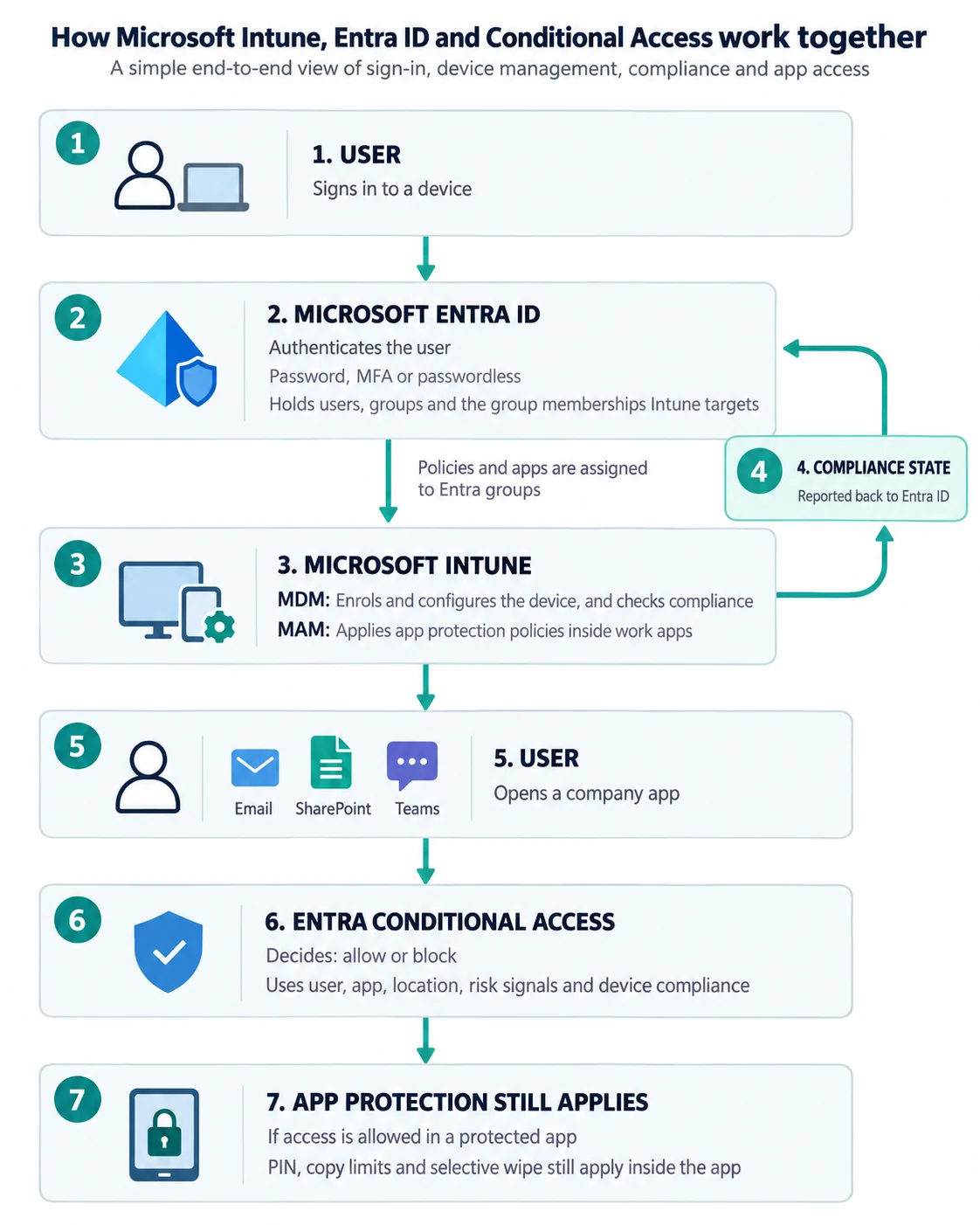
Notice what the middle of the diagram implies: a compliance policy is a set of rules you write, and compliant means the device met them. It does not mean the device is trustworthy in any wider sense. Microsoft's Business Premium guidance also notes that, by default, a device with no compliance policy assigned is treated as compliant. You can change that setting to treat such devices as not compliant, but only do so once you are sure every device type has a policy, or you will lock out your own people.
Three use cases in a fictional lab
To keep this concrete, picture a small fictional company called Lab Co. These are illustrations of what Intune is for, not records of anything we have deployed or tested, and the later chapters in this series build the lab step by step.
Each case names the licensing it leans on, because that is where assumptions go wrong.
- A new starter gets a company Windows 11 laptop. The laptop joins Microsoft Entra ID, enrols in Intune automatically and receives its settings and apps without anyone touching it. Licensing: an Intune licence for the user, and Microsoft Entra ID P1 or P2, because automatic MDM enrolment is a premium Entra feature.
- A salesperson reads work email on a personal phone. The phone is never enrolled. An app protection policy on Outlook requires a PIN and stops company data being saved to the phone, and a selective wipe removes it if they leave. Licensing: an Intune user licence. A device-only licence does not support app protection. If you also want Conditional Access to insist on a protected app, that needs Entra ID P1.
- Only healthy devices may open company files. A compliance policy checks things like encryption and firewall state, and Conditional Access blocks sign-ins from devices that fail. Licensing: Intune plus Microsoft Entra ID P1 or P2, devices enrolled in Intune and a supported platform.
Which Microsoft Intune licence do you actually need?
This is an entitlement-by-feature list rather than a price list. Prices depend on your agreement, are quoted per user per month on annual terms and, on Microsoft's UK pricing page, exclude VAT, so a printed price here would be out of date or wrong for someone. Check current pricing on Microsoft's Intune plans and pricing page.
Microsoft licenses Intune in three plans. Intune Plan 1 is the base service. Intune Plan 2 and the Intune Suite are additive to Plan 1, and the individual advanced add-ons also need Plan 1 underneath. Most organisations get Intune through a Microsoft 365 bundle rather than buying a plan directly. Read the list below against the whole bundle, not just its name.
- Microsoft 365 Business Basic and Standard: no Intune. They include Basic Mobility and Security, which Microsoft describes as a limited subset of Intune, and Microsoft Entra ID Free. They are not enough for the lab in this series.
- Microsoft 365 Business Premium: Intune Plan 1, Microsoft Entra ID P1 (which brings Conditional Access) and Microsoft Defender for Business. Microsoft 365 for business covers organisations of up to 300 users. The advanced capabilities are not part of this bundle in the sources we checked, and one independent commentator says explicitly that they are not coming to it.
- Intune Plan 1 bought on its own: the Intune rights only. Entra ID P1 or P2 is a separate requirement for Conditional Access and for automatic Windows MDM enrolment.
- Microsoft 365 E3: Intune Plan 1, plus capabilities Microsoft has been adding from July 2026: Remote Help, Advanced Analytics and the Plan 2 capabilities (Microsoft Tunnel for MAM, Android firmware-over-the-air updates and specialty-device management).
- Microsoft 365 E5: everything added to E3, plus Endpoint Privilege Management, Microsoft Cloud PKI and Enterprise Application Management.
- Microsoft 365 E7: Microsoft's licensing page lists E7 among the bundles that include Intune. We have not verified exactly which advanced capabilities E7 carries, so check before relying on it.
- Intune Plan 2, the Intune Suite and individual add-ons: sold on top of Plan 1 for tenants that do not already get them through E3 or E5. The Suite bundles the advanced capabilities and includes Plan 2.
- Education: Microsoft 365 Education A3 and A5 include Intune Plan 1 for Education.
- Device-only subscriptions: for kiosks, shared and single-purpose devices enrolled by routes such as Autopilot self-deploying mode or Android Enterprise dedicated. They do not support app protection policies, Conditional Access or user-based features such as email and calendaring.
Choosing a realistic SKU for the lab, and what a bundle name hides
For a small UK organisation, or for anyone building a practice tenant, Microsoft 365 Business Premium is the sensible default. It gives you Intune Plan 1 and Entra ID P1 in one purchase, which is exactly what MDM, MAM, compliance and Conditional Access need. If you already hold E3 or E5, use that. If you have no budget and only want to look around, Microsoft offers a 30-day Intune free trial that includes a trial Enterprise Mobility + Security subscription with Entra ID P1 or P2. Use a disposable or approved test tenant, never a production one, for experiments.
A few details are easy to miss, and each can quietly invalidate a plan:
- Intune and Entra are separate rights. Automatic Windows enrolment and device compliance both need Microsoft Entra ID P1 or P2 alongside Intune. A standalone Intune licence does not bring them.
- Remediations need a Windows licence on top. Intune Remediations, the scripts that detect and fix problems on devices, require users to hold Windows Enterprise E3 or E5 (included in Microsoft 365 F3, E3 and E5), Windows Education A3 or A5, or a Windows VDA licence. Business Premium is not in Microsoft's list, so do not assume it qualifies. Regular PowerShell scripts are a separate feature and are not subject to this requirement in the page we checked.
- Anyone or anything that benefits from Intune needs a licence. Microsoft's rule covers users and devices that benefit directly or indirectly, including through an API.
- Administrators do not always need an Intune licence. Tenants created after July 2021 allow unlicensed admin access by default. Older tenants need the Allow access to unlicensed admins setting turned on, which cannot be undone once enabled and can take up to 48 hours to take effect. Unlicensed admin access does not replace licence requirements for features such as Entra ID P1.
- The E3 and E5 additions are a rolling entitlement, not a switch. Microsoft says tenants receive a 30-day notice in the Message Center before the update activates. Holding an entitlement and having a feature set up and working are two different things, so verify in your own tenant.
Finding your way around the Microsoft Intune admin center
Intune is managed from the Microsoft Intune admin center, a web console. Every action in it is backed by a Microsoft Graph API call, which is why scripting is possible later in this series. Microsoft changes admin centre navigation from time to time, so labels and paths may differ slightly in your tenant.
The areas you will use most are:
- Home and Dashboard: a snapshot of tenant status and compliance. A brand-new tenant shows no devices or apps.
- Devices > All devices: enrolled devices with compliance state, operating system version and last check-in time.
- Devices > Manage devices > Configuration: configuration profiles, meaning the settings you push to devices.
- Devices > Compliance and Devices > Conditional Access: compliance policies and a shortcut into access policies. The Conditional Access policies themselves belong to Microsoft Entra.
- Devices > Device onboarding > Enrollment: enrolment settings, including the Windows automatic enrolment page.
- Apps: installation status and app protection policy status, plus the list of apps added to Intune.
- Users and Groups: the Entra users and groups that policies and apps are assigned to.
- Tenant administration: tenant status, connectors, service health, the Message Center and the licensing and add-on views used below.
- Troubleshooting + support > Troubleshoot: a per-user or per-device view of policies, apps and enrolment restrictions, and where you raise a support request.
Check what your tenant actually holds
Before choosing features for the lab, confirm what your tenant is entitled to. These steps only read information and change nothing. You need an administrator account for the tenant. In a tenant created after July 2021 that account does not need an Intune licence of its own to sign in.
- Sign in to the Microsoft Intune admin center with an administrator account.
- Go to Tenant administration > Tenant status and open the Tenant details tab. Note the MDM authority, the Total licensed users and the Total Intune licenses. If the licence total is zero in a tenant you expected to be licensed, stop here and check the assignment in your Microsoft 365 admin centre before going further.
- Go to Tenant administration > Intune add-ons. The Capabilities tab shows which advanced capabilities your tenant is eligible for. The Your add-ons tab, visible only to Global or Billing administrators, shows what is Active. This is the quickest way to see whether the E3 or E5 additions have reached you.
- Still under Tenant administration > Tenant status, open the Service health and message center tab and look for any Intune licensing notices. For E3 and E5 customers, this is where Microsoft's 30-day advance notice of the update should appear.
- Check your Entra licence. In the Azure portal, select Microsoft Entra ID, then Overview, and read the licence shown under Basic information. You are looking for Microsoft Entra ID P1 or P2 if you want automatic Windows enrolment, compliance or Conditional Access.
- Write down, for each group of users, whether you have Intune Plan 1, Entra ID P1 or P2 and any advanced capability. That short record is your licensing baseline. You have succeeded when you can state, without guessing, which of the three use cases above your licences support.
What we have not tested, and what comes next
The licensing information was checked against Microsoft's published documentation on 29 October 2026. Other explanations draw on those documents and an independent technical source. We have not enrolled a device, assigned a licence or run these admin centre steps in a live tenant for this article, and we are not claiming otherwise.
Two points are less settled than the rest. Microsoft's licensing page and its pricing page do not describe the contents of Intune Plan 2 in exactly the same way, so trust the Capabilities tab in your own tenant over any summary. E7 coverage of the advanced capabilities is unverified.
Nothing in this article asks you to change a tenant. The next step in the series is preparing a disposable or approved test tenant: subscriptions, admin roles, groups and pilot scope, before any device is enrolled.
Technical terms explained
- app protection policy
- A set of rules attached to a work app, such as requiring a PIN or blocking copying into personal apps. It can work without the device being enrolled.
- Basic Mobility and Security
- A limited mobile device management service included with every Microsoft 365 for business plan. Microsoft describes it as a subset of Intune.
- compliance policy
- Rules a device must meet, such as encryption or a firewall being on. Intune reports each device as compliant or not, and Conditional Access can act on the result.
- Conditional Access
- A Microsoft Entra feature that allows or blocks sign-ins using signals such as the user, app, location, risk and the device's compliance state. It needs Entra ID P1 or higher.
- MAM
- Mobile application management. Intune controls only the work apps and the company data inside them, leaving the rest of the device to its owner.
- MDM
- Mobile device management. The device is enrolled in Intune so the organisation can manage its settings, security and apps, and wipe it if it is lost.
- selective wipe
- Removing only the organisation's data from a protected app, leaving the person's own apps and files untouched.
Sources and further reading
- What is Microsoft Intune? - Microsoft Learn
- Microsoft Intune licensing plans and options - Microsoft Learn
- Microsoft Intune advanced capabilities - Microsoft Learn
- Microsoft Intune core concepts - Microsoft Learn
- Microsoft 365 for business security overview - Microsoft Learn
- Intune device and application management in Microsoft 365 Business Premium - Microsoft Learn
- Enable MDM automatic enrollment for Windows - Microsoft Learn
- Use Remediations to detect and fix support issues - Microsoft Learn
- Tutorial: Walkthrough the Microsoft Intune admin center - Microsoft Learn
- Microsoft Intune plans and pricing - Microsoft
- The Microsoft Intune Suite is Dead! Long Live the Microsoft Intune Suite! - Patch My PC (independent)